
Build a HubSpot report by asking for it: a Build with AI walkthrough
Describe the HubSpot report you want in your own words. Build with AI sets it up, shows you every detail, and waits for your Approve.
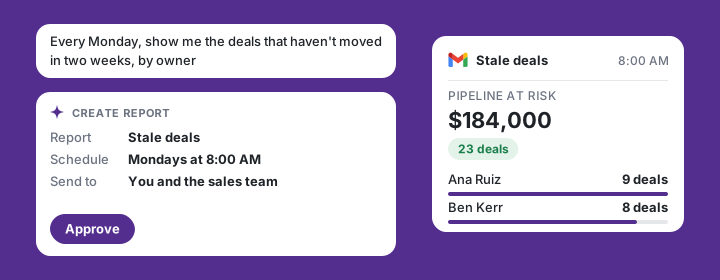
Most HubSpot users know exactly which report they want. The hard part has always been the setup: which figures, which filters, when it should run and who should get it. Build with AI is the assistant inside your Captain Hudson dashboard, and it does that setup from one sentence in your own words.
Where to find it
Sign in and press Build with AI in the top bar of any dashboard screen. The panel opens at the side and keeps its conversation while you move between screens, so you can look at a report while you talk about it. Write in your own language and it replies in it.
The conversation, turn by turn
This is the conversation in the picture above.
You: Every Monday, show me the deals that haven't moved in two weeks, by owner
Build with AI: Here's a weekly list of open deals with no activity for 14 days, grouped by owner, across all pipelines. Approve to create it.
Under the answer is an approval card. It says exactly what will happen:
- Report: Stale deals
- Schedule: Mondays at 8:00 AM
- Send to: You and the sales team
Nothing has changed yet. Press Approve and the report is created; press Cancel and it is dropped. Sending a new message while a card is open also cancels it.
Build with AI: Created. The first list arrives Monday at 8:00 AM.
You can keep going in the same conversation:
You: Add Sam from finance to it as well.
Build with AI: Here's the change: the same report, with Sam added to the recipients. Approve to save it.
You: Send me a test now so I can see it.
Build with AI: I'll send it to you once now. Approve to send the test.
Each of those is its own card, and each waits for you.
What arrives
At 8:00 AM the stale deals lands in the inbox of everyone on the list, with the figures from your HubSpot account. Every run also shows on the report's screen in the dashboard, so you can see when it ran and who it went to.
Good things to ask
Start from the reports HubSpot users ask for most. Name the report, then say when you want it and who should get it:
- “Set up Stale deals for me and send it to me and my team.”
- “Set up Deal stage funnel for me and send it to me and my team.”
- “Set up Time in stage for me and send it to me and my team.”
- “Set up Closed lost reasons for me and send it to me and my team.”
- “Set up Sales rep activity for me and send it to me and my team.”
You can also ask how something works, for example “How do I pause a report while we're closed?” The assistant answers, opens the right screen and points at the button.
What it won't do
- Change billing, your team or your HubSpot connection. For those it explains the steps, opens the screen and points at the control.
- Read the figures inside your reports. It knows what a report contains and when it runs, not the numbers in it.
- Make any change without your Approve.
- Answer questions that have nothing to do with Captain Hudson.
Answers come from AI and can be wrong, so read the card before you approve. The thumbs under each answer tell us when it missed.
Credits
Every plan, the free trial included, comes with a monthly allowance of credits shared by your team. A long conversation uses more than a quick question, and building a report it proposed uses none. The panel shows what's left. If you run out, an Owner on a paid plan can add a block of credits; nothing is ever bought automatically.